Smart Key Code Saving
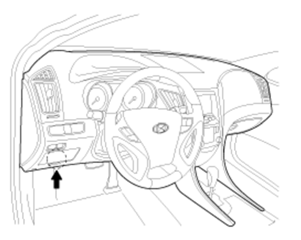
- Connect the DLC cable of GDS to the data link connector in driver side crash pad lower panel, turn the power on GDS.
 Courtesy of HYUNDAI MOTOR CO.
- Select the vehicle model and then do "Smart key code saving".
 Courtesy of HYUNDAI MOTOR CO.
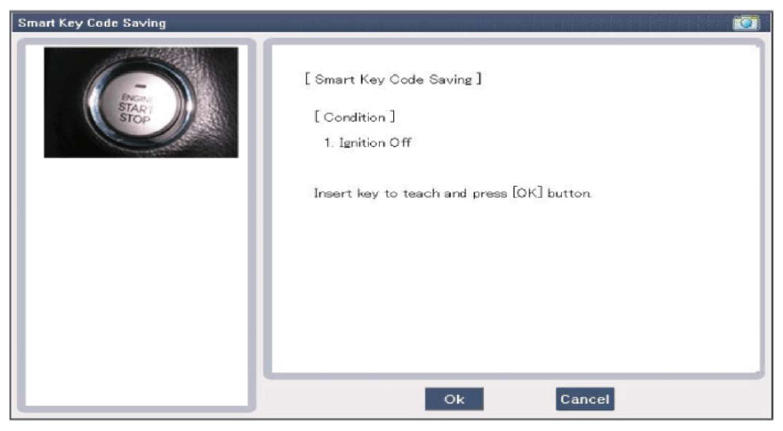
- After selecting "Smart key teaching" menu, push "Enter" key, then the screen will be shown as below.
 Courtesy of HYUNDAI MOTOR CO.
- After inserting the teaching key, push "ENTER" key.
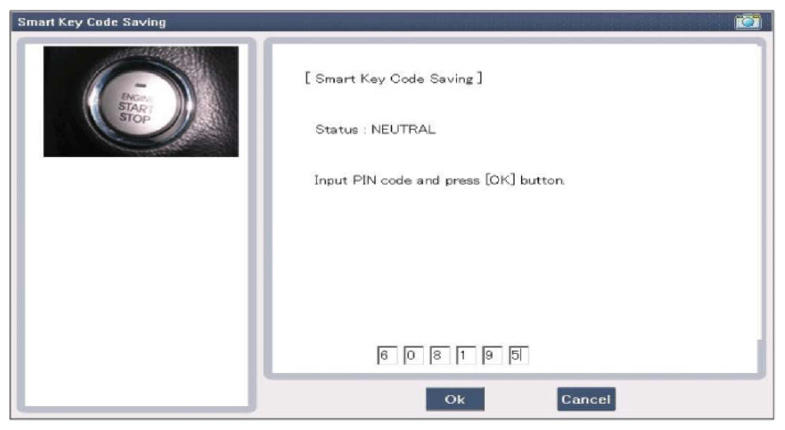
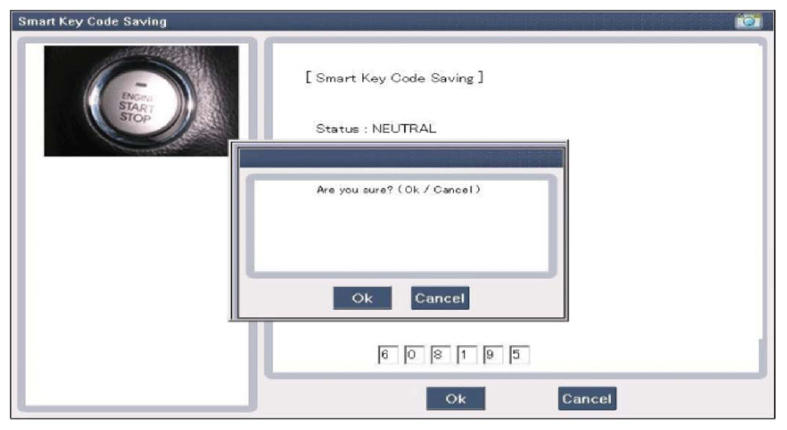
- Input the "Pin code" for first key teaching.
 Courtesy of HYUNDAI MOTOR CO.
 Courtesy of HYUNDAI MOTOR CO.
- Confirm the message "First key teaching completed".
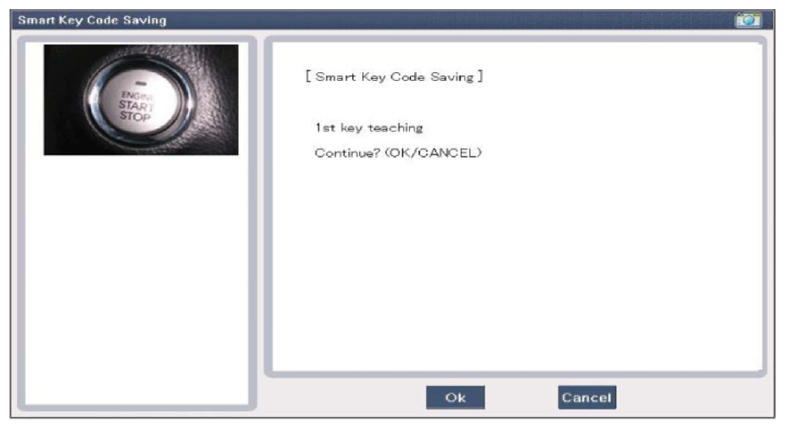 Courtesy of HYUNDAI MOTOR CO.
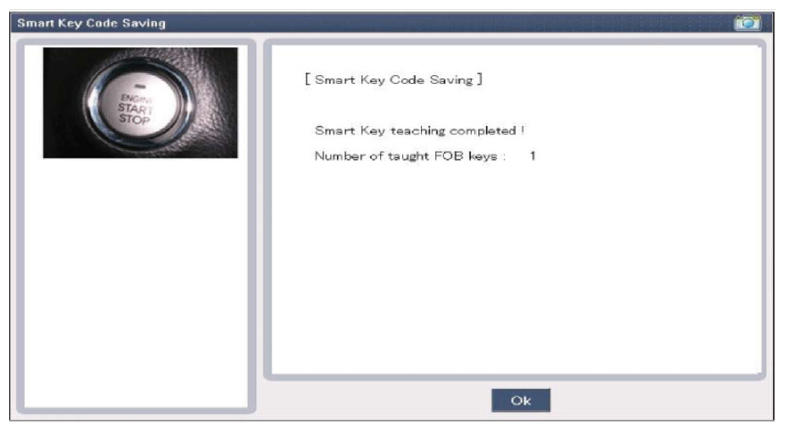 Courtesy of HYUNDAI MOTOR CO.
- Input the "Pin code" for second key teaching.
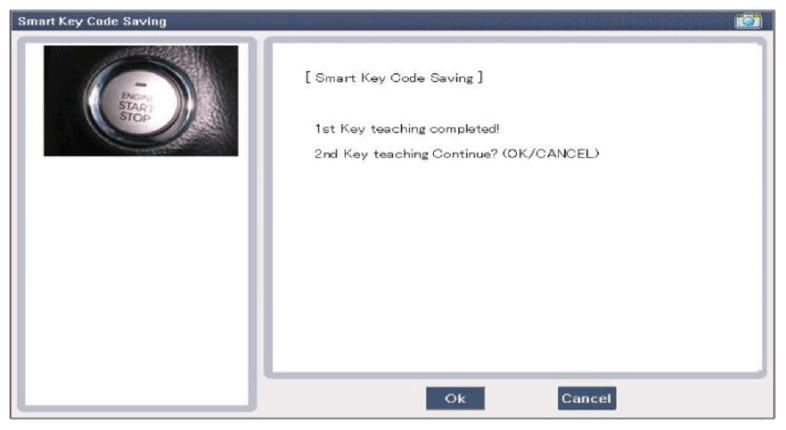 Courtesy of HYUNDAI MOTOR CO.
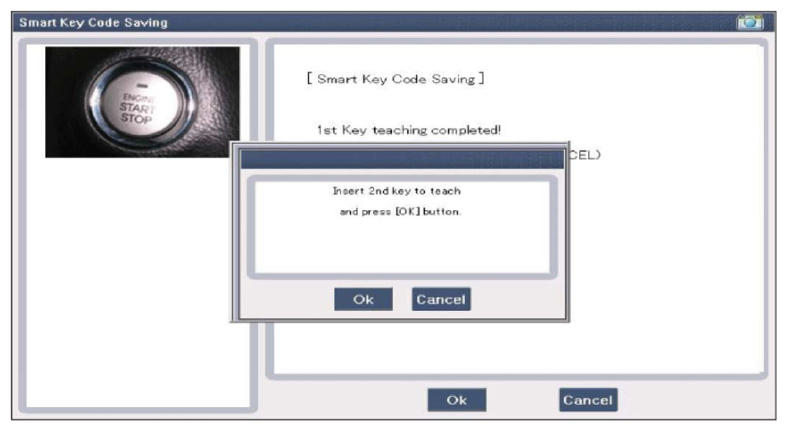 Courtesy of HYUNDAI MOTOR CO.
- Confirm the message "Second key teaching completed".
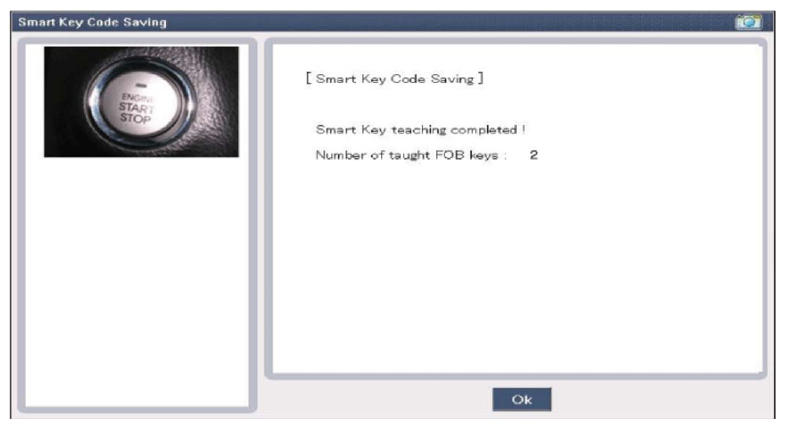 Courtesy of HYUNDAI MOTOR CO.
- Then the screen will be shown as below when key teaching process is completed.